
Appearance
Departments Management
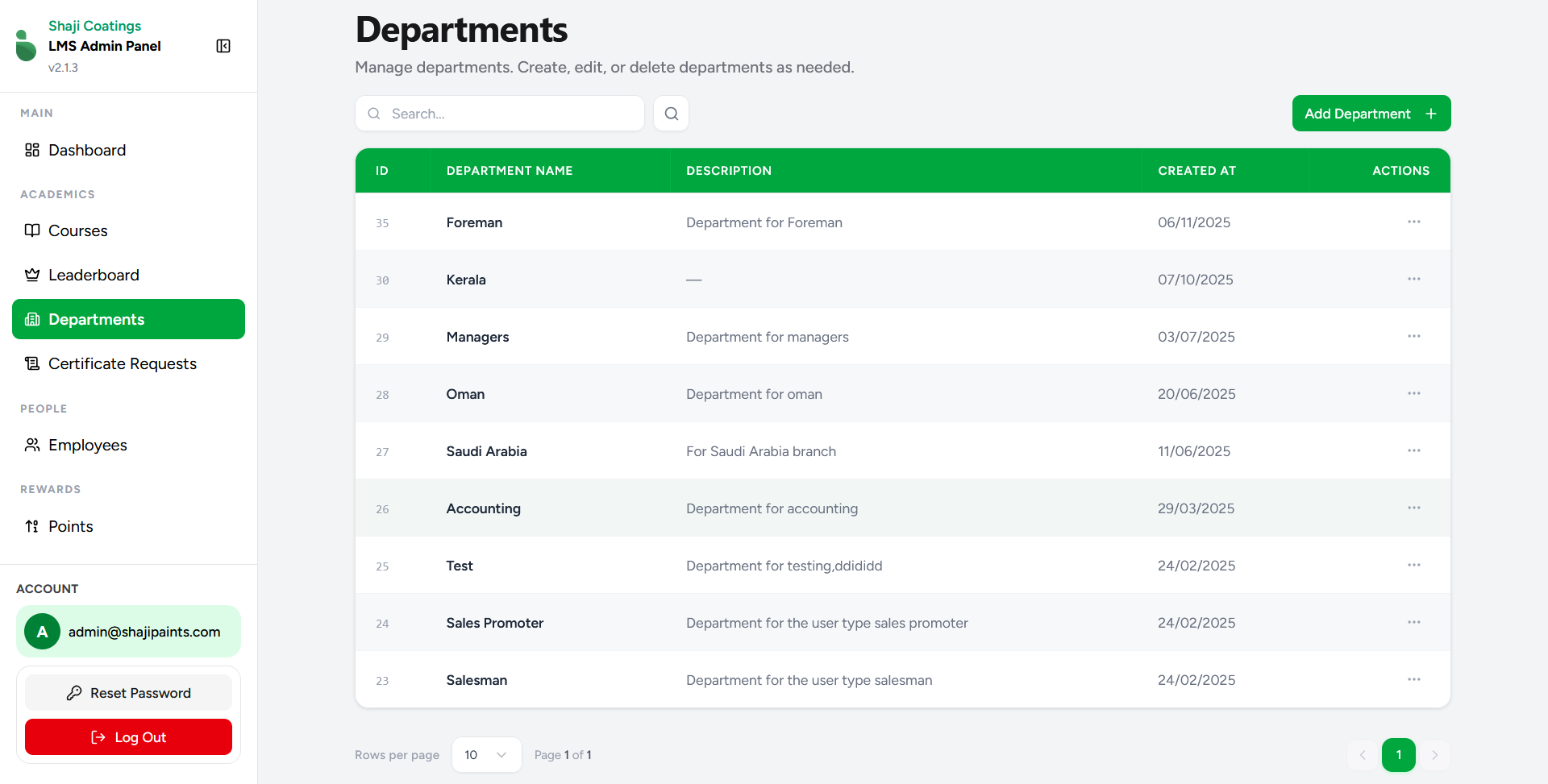
The Departments screen provides a centralized interface for administrators to manage the various departments within the organization. From this dashboard, you can oversee existing departments, add new ones, edit details, delete obsolete records, and export department-wise reports.
Key Features
- Search Functionality: Use the search bar above the table to easily locate a specific department by its name.
- Data Overview: The primary table lists all configured departments with the following details:
- ID: The unique numerical identifier for the department.
- DEPARTMENT NAME: The official name of the department.
- DESCRIPTION: A brief, optional summary outlining the department's purpose or specific branch.
- CREATED AT: The date the department was originally registered in the system.
- ACTIONS: A menu (represented by the
...icon) providing access to specific operations for that row.
- Download Report: Located within the actions menu (
...) of each department row, this option allows you to generate and download a comprehensive Excel report specific to that department. The exported file contains valuable employee metrics, including:- Name of the employee
- Department name
- Total points earned
- Course completed count
Department Operations
1. Add a Department
To introduce a new department to the system, click the green Add Department + button at the top right of the screen.
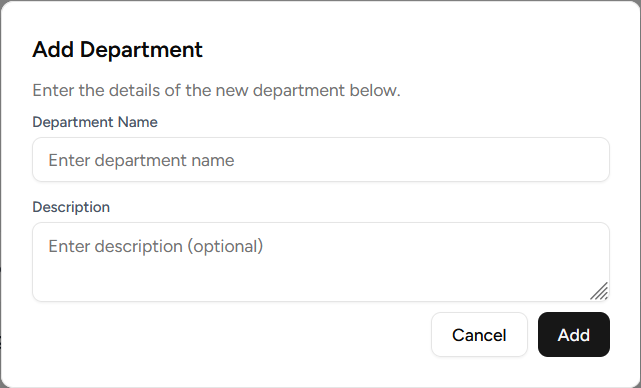
- Department Name: Enter the exact title of the new department (Required).
- Description: Add any relevant context or details about the department (Optional).
- Click Add to confirm and create the new record.
2. Edit a Department
To update the details of an existing department, click the actions menu (...) on the corresponding row and select the edit option.
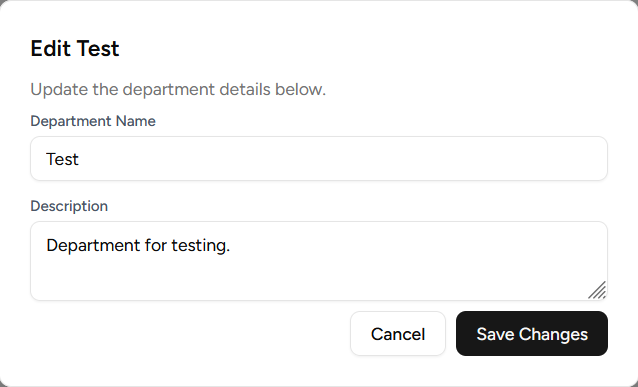
- The modal will populate with the current Department Name and Description.
- Make the necessary adjustments to the text fields.
- Click Save Changes to immediately apply the updates to the system.
3. Delete a Department
If a department is no longer active or was created in error, you can remove it by selecting the delete option from the actions menu (...) on the corresponding row.