
Appearance
Adding Modules
The Modules screen allows administrators to break down a comprehensive course into structured, manageable sections. Accessed directly from a specific course's action menu, this interface lets you define the learning sequence, assign trainers, and manage the multimedia content and assessments for each chapter.
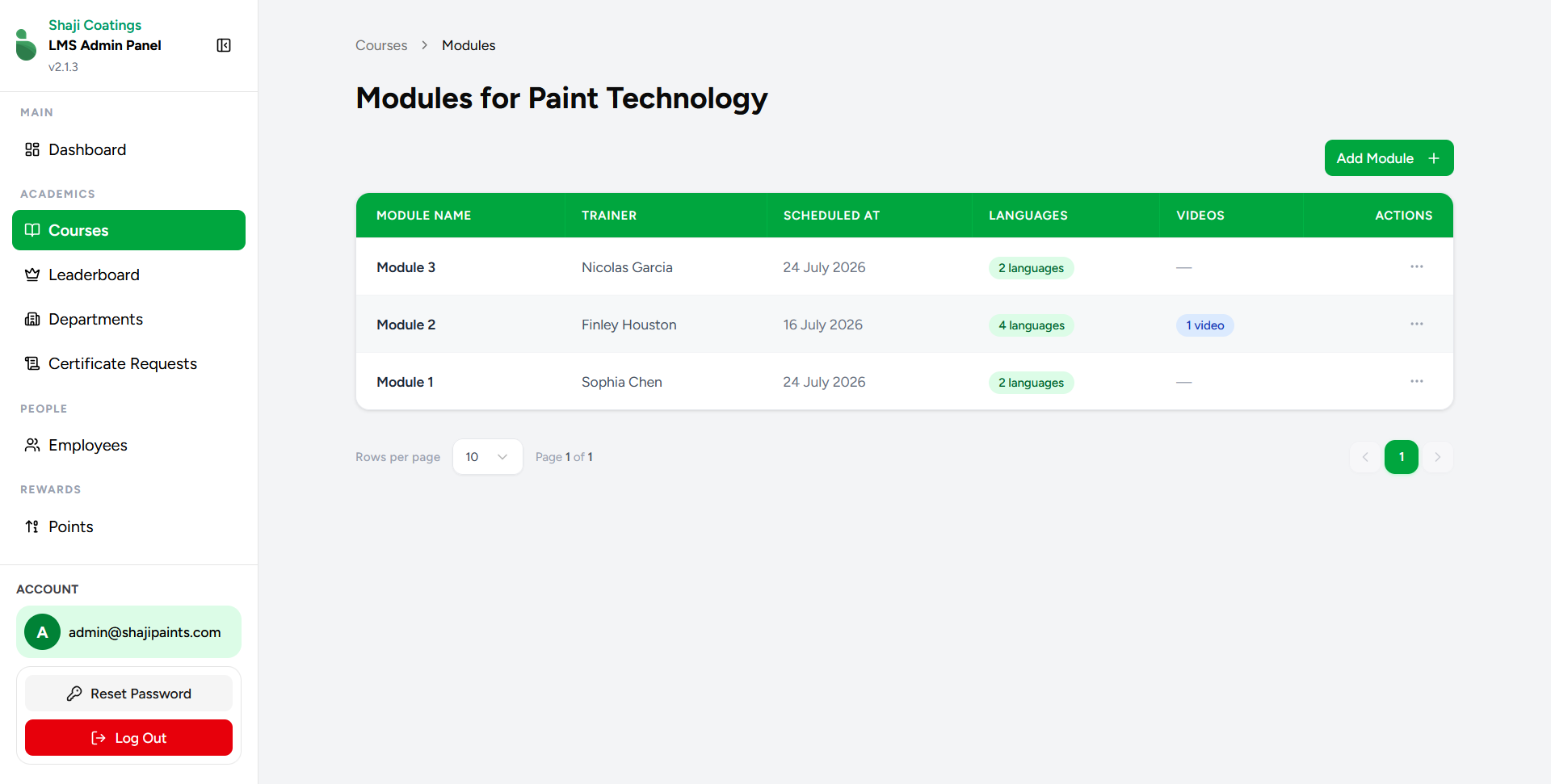
Overview
The primary table provides a clear layout of the curriculum structure for the selected course (e.g., Paint Technology).
- Data Overview: The table displays the following information for each module:
- MODULE NAME: The title of the specific section or chapter.
- TRAINER: The designated instructor or subject matter expert for the module.
- SCHEDULED AT: The date the module is slated for release or live training.
- LANGUAGES: A pill indicating the number of languages supported for this module's content.
- VIDEOS: A pill indicating the count of video resources currently uploaded to the module.
- ACTIONS: A menu (
...) to manage the module's details, upload media, or build quizzes.
Basic Module Operations
1. Add a Module
To create a new section within the course, click the green Add Module + button at the top right.
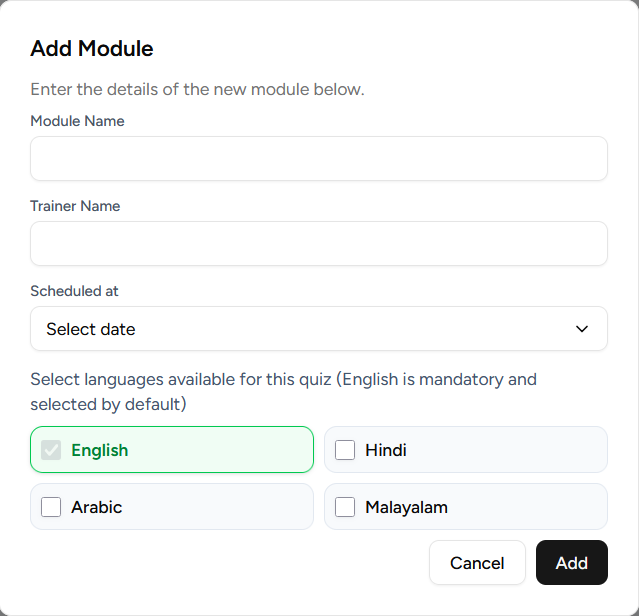
- Module Name & Trainer Name: Provide the structural title and assign an instructor.
- Scheduled at: Select the applicable date from the dropdown calendar.
- Languages: Select all language options that will be provided for this module's quizzes and media. English is mandatory and selected by default. Additional options include Hindi, Arabic, and Malayalam.
- Click Add to create the module.
2. Edit a Module
To modify an existing module, click the actions menu (...) on its row and select Edit Module.
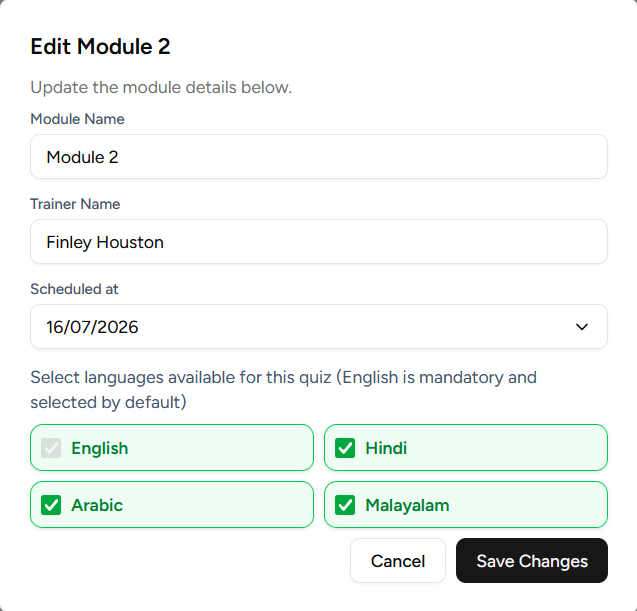
- Update the textual details, scheduling, or toggle the supported language options as necessary.
- Click Save Changes to update the module's configuration.
3. Delete a Module
Select Delete from the actions menu to remove the module.
⚠️ WARNING: Deleting a module will permanently erase all associated videos, resources, nested quizzes, and questions contained within it.
Content Management & Nested Navigation
The actions menu (...) provides the tools to populate the module with learning materials and assessments.
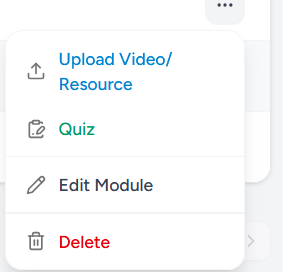
Upload Video/Resource
Select Upload Video/Resource to attach multimedia learning materials to the module.
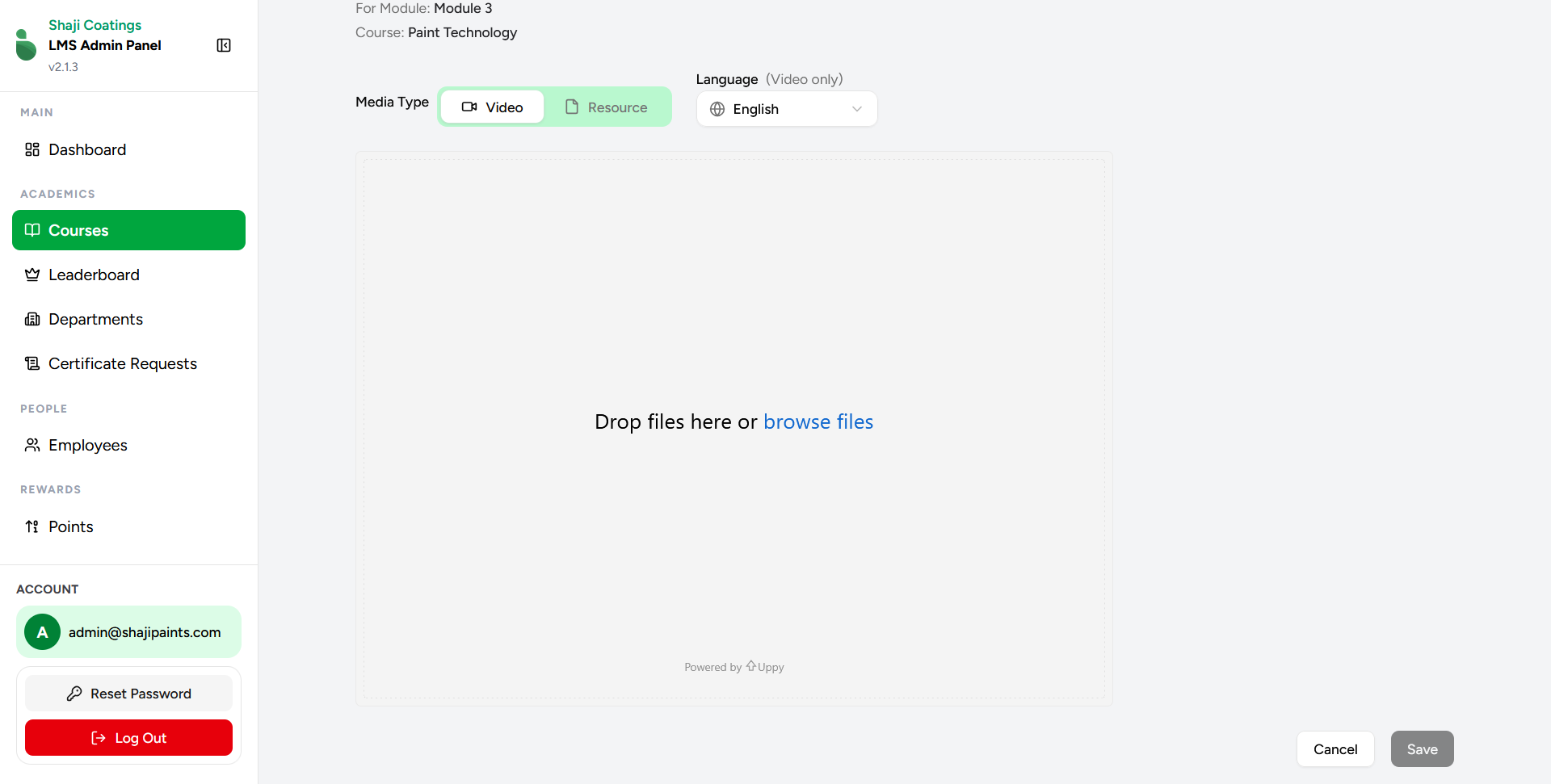
- Media Type: Toggle between uploading a Video lesson or a static Resource (such as a PDF or document).
- Language: When uploading a video, specify the language audio/subtitles it corresponds to using the dropdown menu.
- Drag and Drop: Utilize the central zone to quickly drag and drop your files, or click
browse filesto select them from your system. - Click Save once the upload completes to attach the media to the module.
Quiz
Select Quiz to navigate down into the dedicated assessment builder for this specific module. This is where administrators can create the localized quizzes that test the employee's retention of the module's content. (For detailed instructions, refer to the Quiz Management guide).