
Appearance
Question Bank
The Question Bank screen serves as the granular content manager for a specific quiz. From this interface, administrators can populate the assessment with individual questions, define multiple-choice options, and manage language localizations.
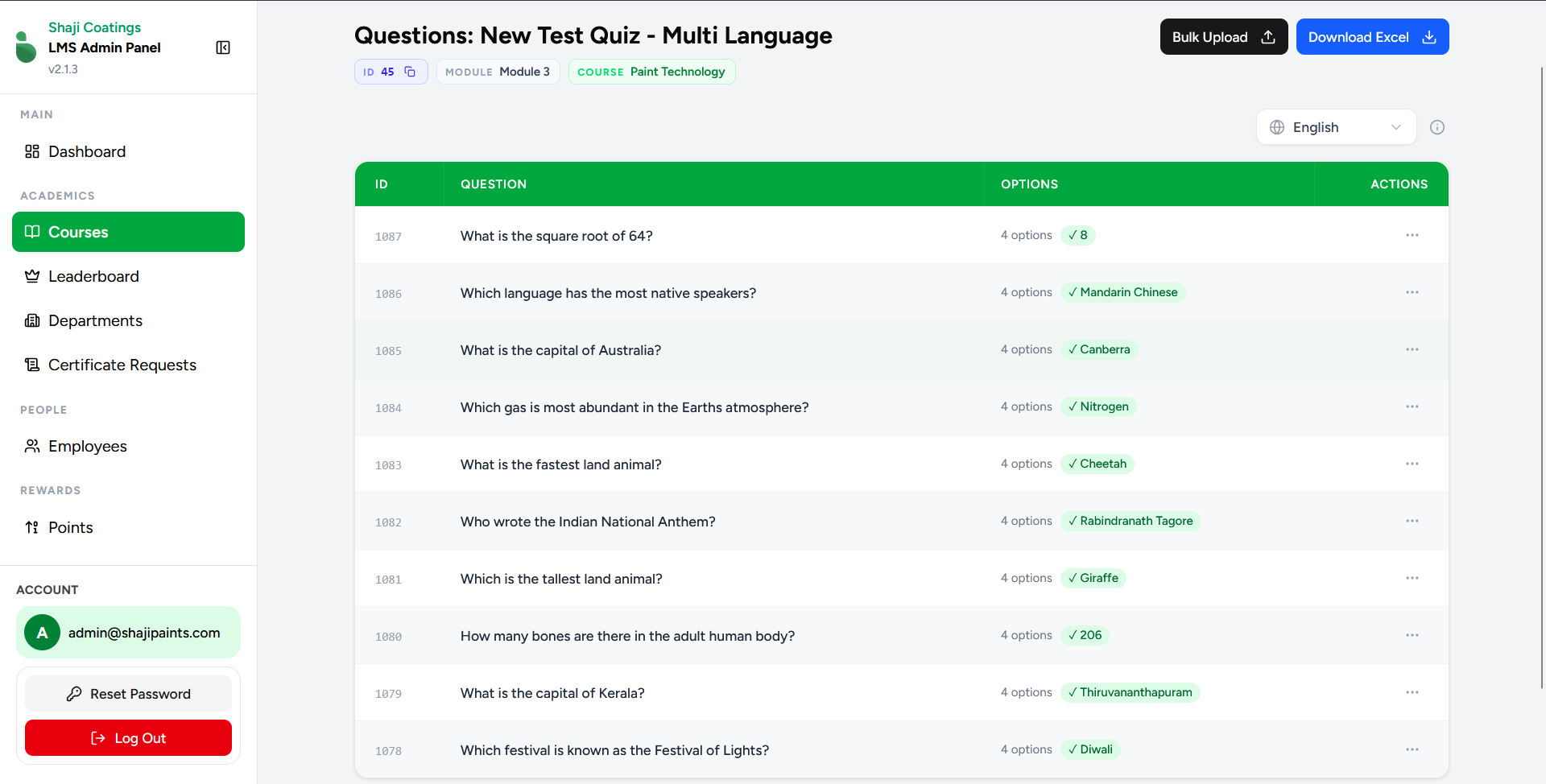
Interface Overview
This screen is highly specialized to handle multilingual assessment data efficiently:
- Quick Copy Quiz ID: At the top left of the interface, you will find the Quiz ID badge (e.g.,
ID 45). Clicking the copy icon next to it will immediately copy this identifier to your clipboard. This is a mandatory requirement for formatting the Bulk Upload template. - Language Filter: The dropdown menu at the top right allows you to filter the active table to view questions specific to a selected language (e.g., English, Malayalam).
- Data Overview: The central table displays the following:
- ID: The unique database identifier for the individual question.
- QUESTION: The actual text of the question.
- OPTIONS: The number of configured multiple-choice options, with the correct answer highlighted in green.
- ACTIONS: A menu (
...) to edit or manage the specific question.
Bulk Upload Operations
For large-scale course deployments, adding questions individually is inefficient. The system supports executing a bulk insertion via a standardized Excel template.
To prevent database errors and ensure proper localization mapping, the template must be strictly formatted.
Understanding the Template Mechanics
Click Download Excel to retrieve the required blank template (Questions.xlsx).
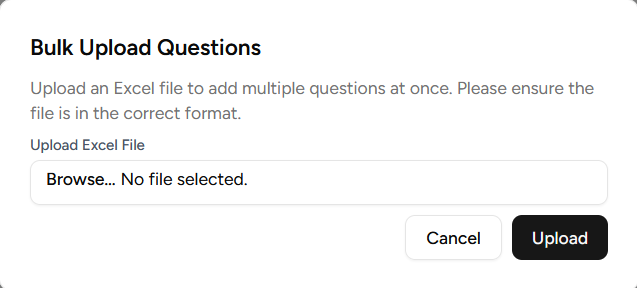
The spreadsheet contains explicit columns that map directly to the database schema. The most critical operational concept is the QuestionGroupId.
To maintain database integrity and ensure consistent evaluation across different localizations, the system utilizes the QuestionGroupId as a relational key mapping the identical conceptual question across multiple languages.
Template Columns:
QuestionGroupId: If you insert two rows representing the identical conceptual question—one localized in English (en) and one in Malayalam (ml)—they must share the exact sameQuestionGroupIdvalue (e.g.,Q1). This ensures the database recognizes them as localized variants of a single entity, rather than disjointed questions.QuizId: Paste the numeric ID copied from the top-left badge of the web interface.Language: The designated language code (e.g.,en,ml,hi).QuestionText: The actual question string.Option1toOption4: The text for each multiple-choice option.CorrectOption: A numerical integer (1, 2, 3, or 4) indicating which of the preceding options is the correct answer.
Once your data is properly formatted and validated, click Bulk Upload, select your file, and click Upload to execute the database insertion.
Manual Question Operations
Edit a Question
To modify the phrasing, the available choices, or the correct answer for an existing question, click the actions menu (...) on the corresponding row and select Edit Question.
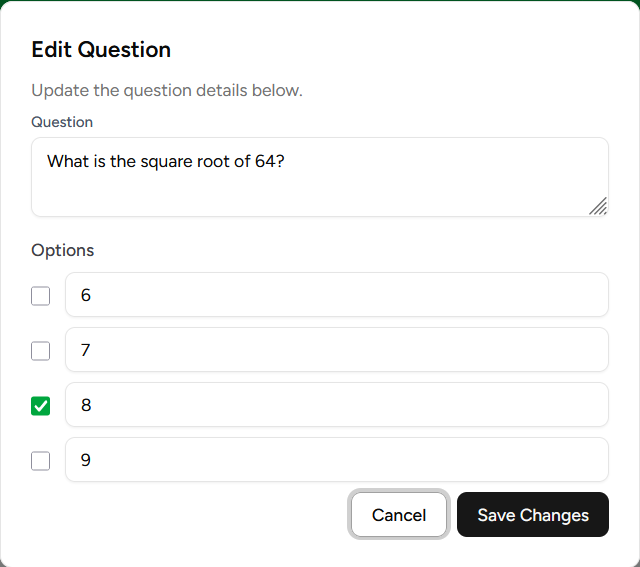
- Question Text: Update the main phrasing of the question.
- Options: Modify the text for any of the four available options.
- Correct Answer Selection: Utilize the checkboxes located to the left of each option field to strictly define which answer is the designated correct choice.
- Click Save Changes to commit the update.