
Appearance
Quiz Management
The Quizzes screen acts as the assessment container for your training modules. Accessed directly from a specific module, this interface allows administrators to configure the structural rules for a test—such as duration, grading logic, and language availability—before building out the actual question bank.
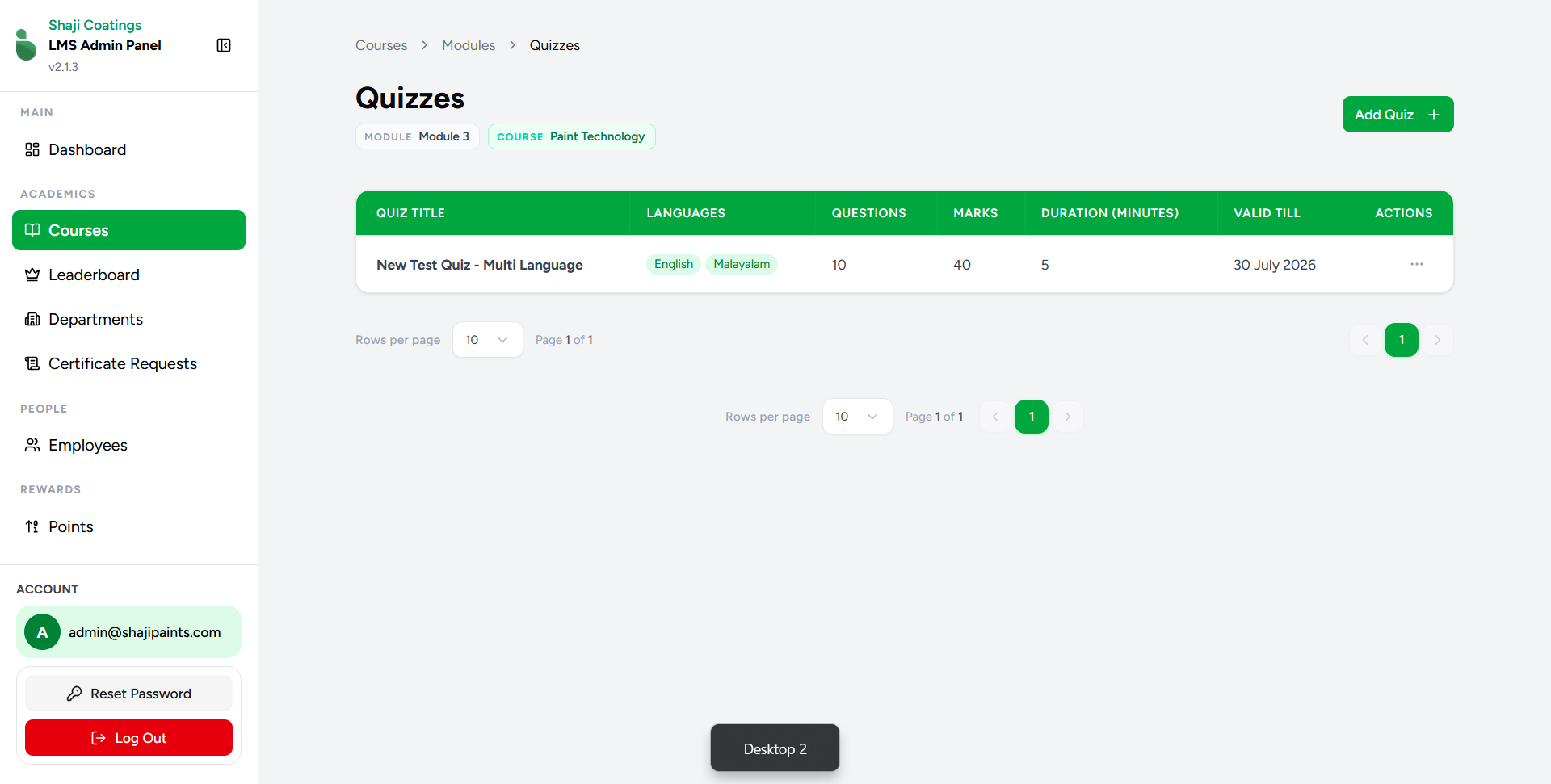
Overview
The primary table displays all the quizzes configured for the selected module.
- Data Overview: The central table provides the following structural details:
- QUIZ TITLE: The name of the assessment.
- LANGUAGES: Pills indicating which languages the quiz supports.
- QUESTIONS: The total number of questions included in the assessment.
- MARKS: The total possible score.
- DURATION (MINUTES): The time limit imposed on the employee to complete the test.
- VALID TILL: The deadline for employees to complete the quiz.
- ACTIONS: A menu (
...) to manage the quiz settings, edit the question bank, or review employee results.
Basic Quiz Operations
1. Add a Quiz
To create a new assessment container, click the green Add Quiz + button at the top right.
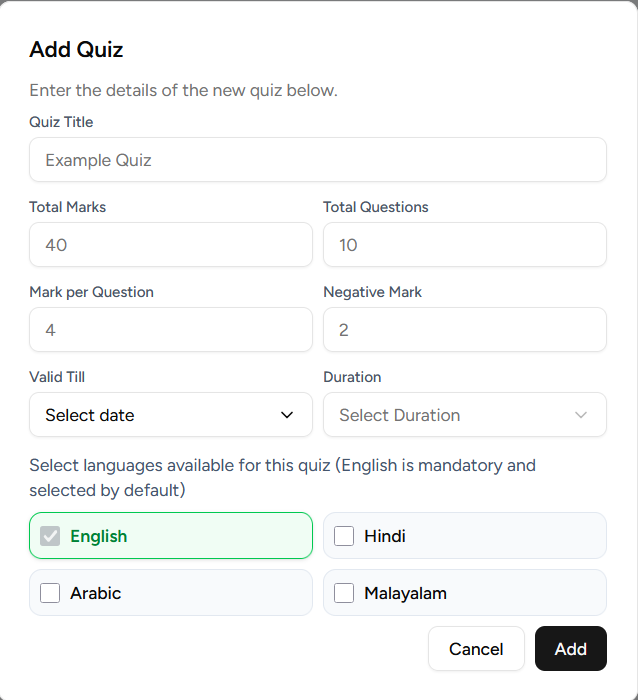
- Quiz Configuration: Enter the Quiz Title, Total Marks, and Total Questions.
- Grading Logic: Define the Mark per Question and any Negative Mark penalty for incorrect answers.
- Constraints: Set the Valid Till deadline and the time limit (Duration).
- Languages: Select the supported languages. English is mandatory by default, and the available options inherit from the parent module's settings.
- Click Add to initialize the quiz.
2. Edit a Quiz
To modify the rules or details of an existing quiz, click the actions menu (...) on the corresponding row and select Edit Quiz.
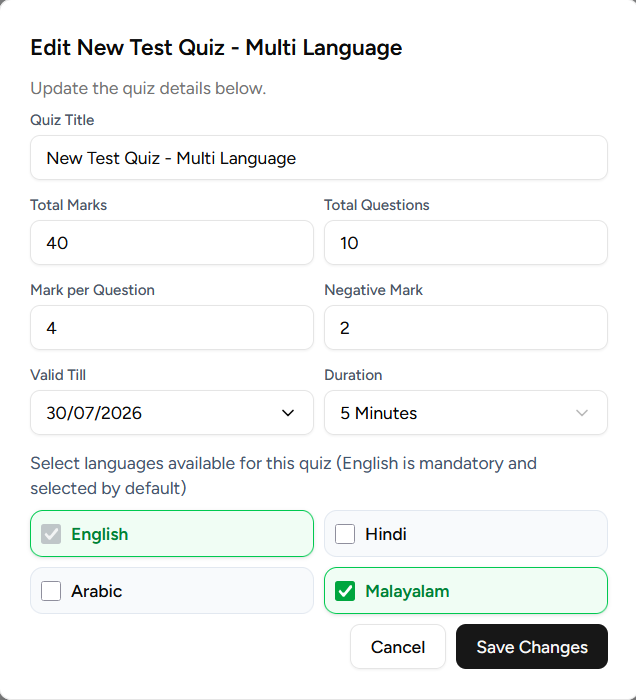
- Adjust the grading logic, duration, deadlines, or toggle supported languages as needed.
- Click Save Changes to apply the updates.
3. Delete a Quiz
Select Delete from the actions menu to remove the quiz.
⚠️ WARNING: Deleting a quiz is a destructive action. It will permanently erase all nested questions within its bank, as well as all historical attempt data and employee scores associated with it.
Nested Navigation & Analytics
The actions menu (...) for a specific quiz provides access to the actual assessment content and employee performance data.
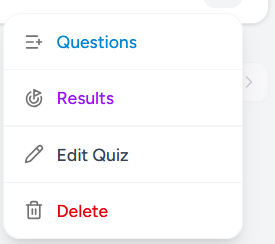
Questions
Select Questions to navigate into the dedicated Question Bank builder. This interface is where administrators can actually write the quiz questions, define multiple-choice options, and mark the correct answers for each supported language.
Results
Select Results to view a comprehensive ledger of employee performance for this specific quiz.
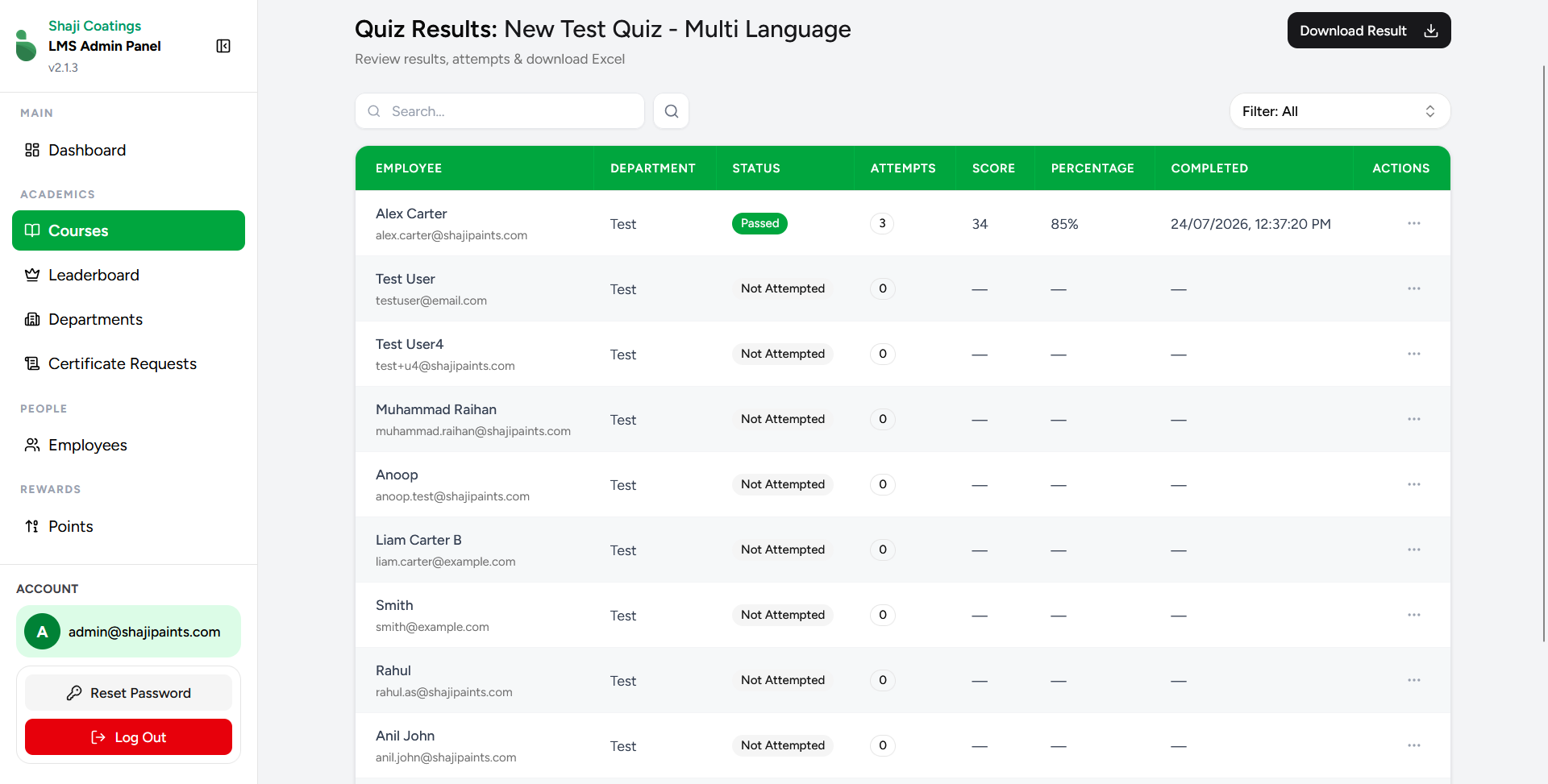
- Overview: The table lists all employees assigned to the quiz, displaying their current Status (Passed, Failed, or Not Attempted), total Attempts, highest Score and Percentage, and completion timestamp.
- Export: Use the Download Result button at the top right to export the performance data to an Excel spreadsheet.
- Deep Dive (Attempt History): To review an individual employee's specific attempts, click the actions menu (
...) on their row and select Attempts.
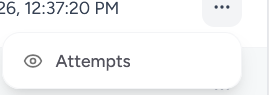
This will navigate you to the Quiz Attempts screen, which provides a granular breakdown of that specific user's interaction with the test:
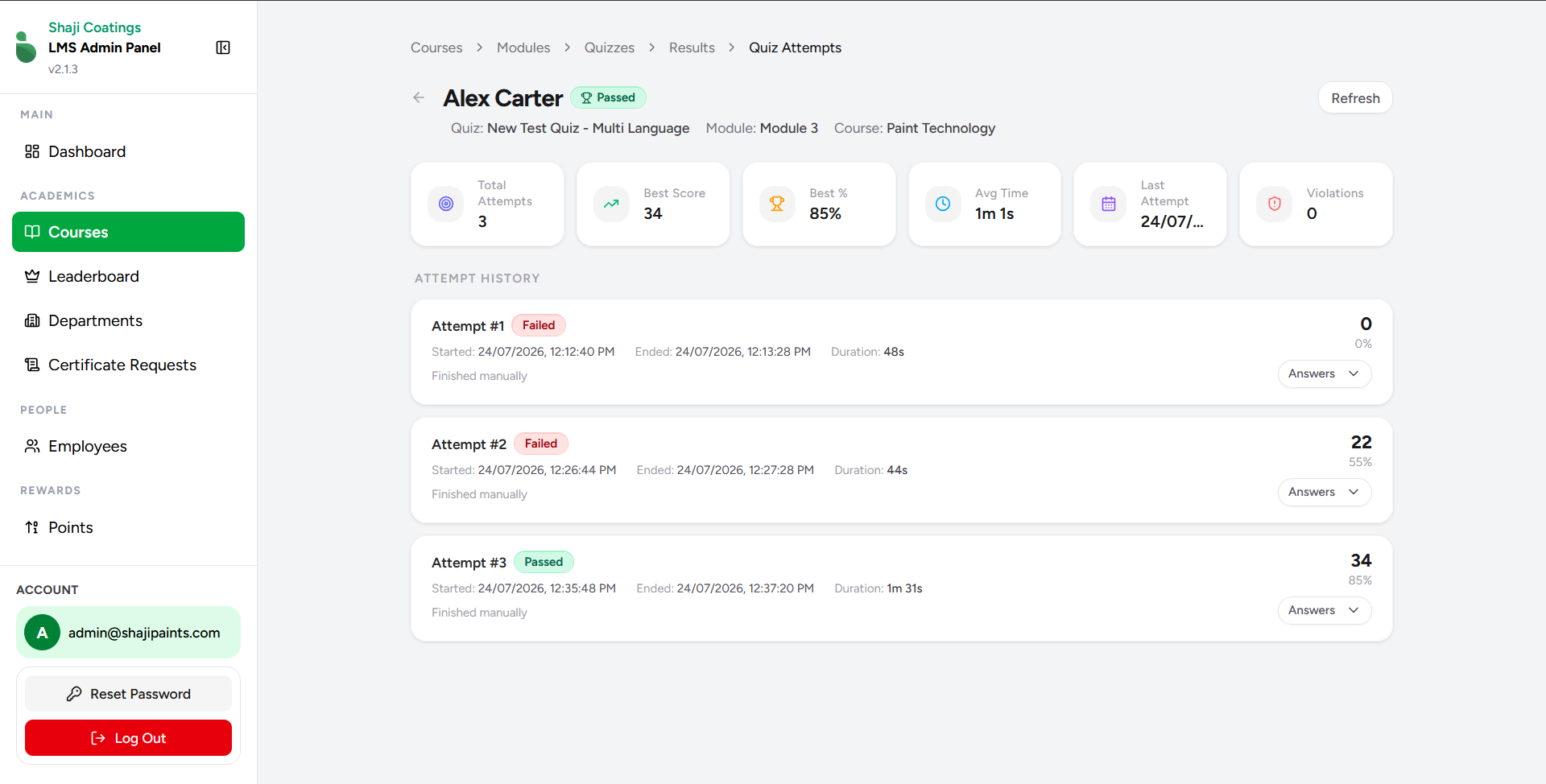
- Metrics: Top-level cards summarize their Total Attempts, Best Score, Average Time, and any system-flagged Violations (e.g., leaving the test window).
- Attempt History: A chronological list of every attempt, showing the start/end times, duration, and the resulting score. You can expand the Answers dropdown on any attempt record to see exactly which questions the employee answered correctly or incorrectly.