
Appearance
Course Details & Modules
Clicking into any course opens its structural breakdown, showcasing completion status, lesson modules, multimedia resources, and specialized evaluation engines.
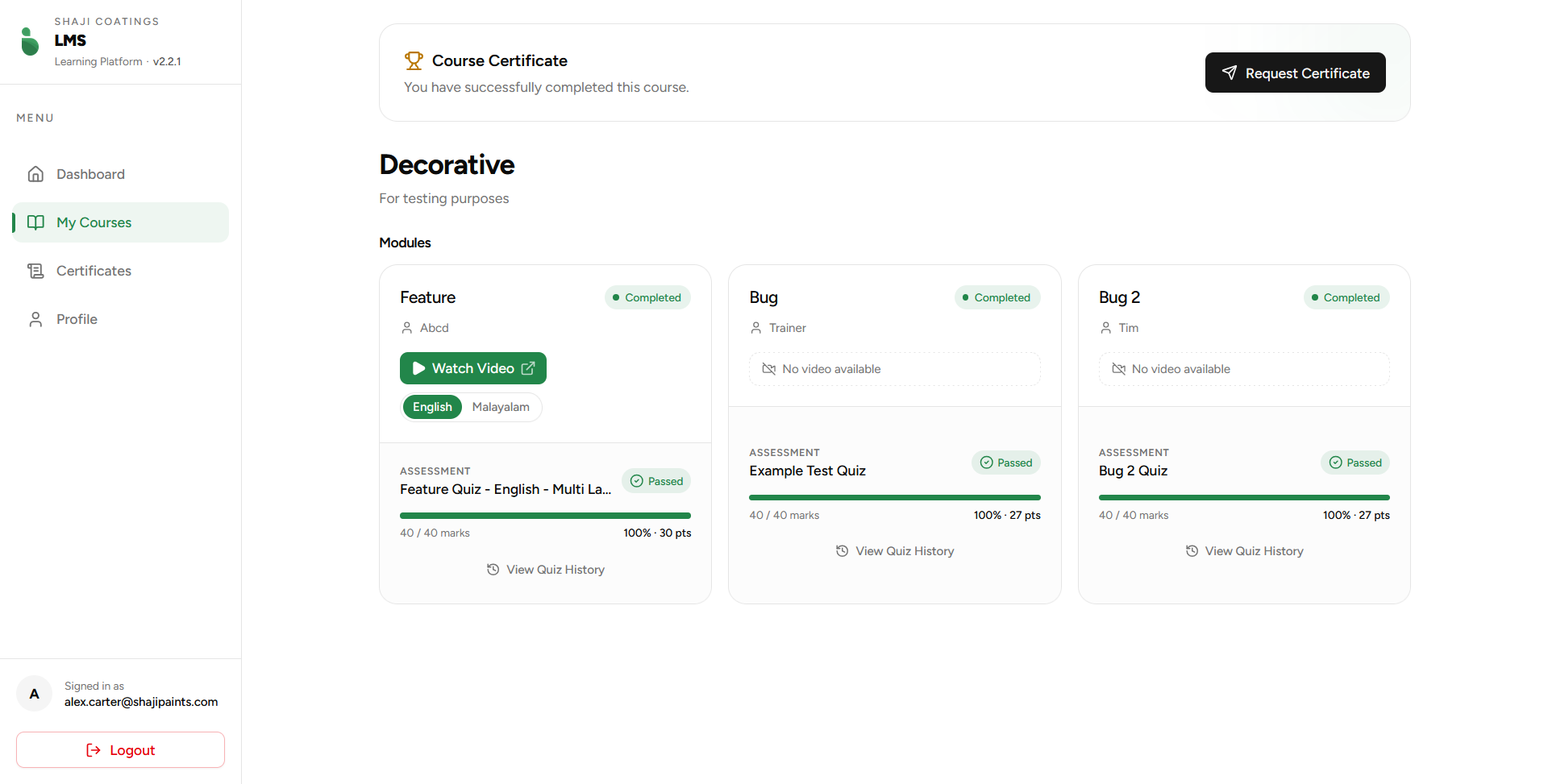 Figure 1: Comprehensive module tracking and quiz status dashboard.
Certificate Action Banner
If you have achieved a 100% completion rate across all individual modules and passed their respective tests, a global status block displays at the top allowing you to click Request Certificate.
Module Cards Architecture
Every module contains three distinct sections:
1. Metadata & Media
- Instructor Information: Displays the creator or trainer assigned to the module block.
- Status Flags: Explicitly displays green
Completedbadges when content consumption conditions are satisfied. - Media Delivery: Modules either feature a video lesson path (Watch Video with an explicit language picker dropdown) or explicitly print a
No video availablefallback flag when written guidelines are the core medium.
2. Quiz Performance & History
Clicking the full-width Quiz History button on a module card expands a comprehensive view of your specific attempts:
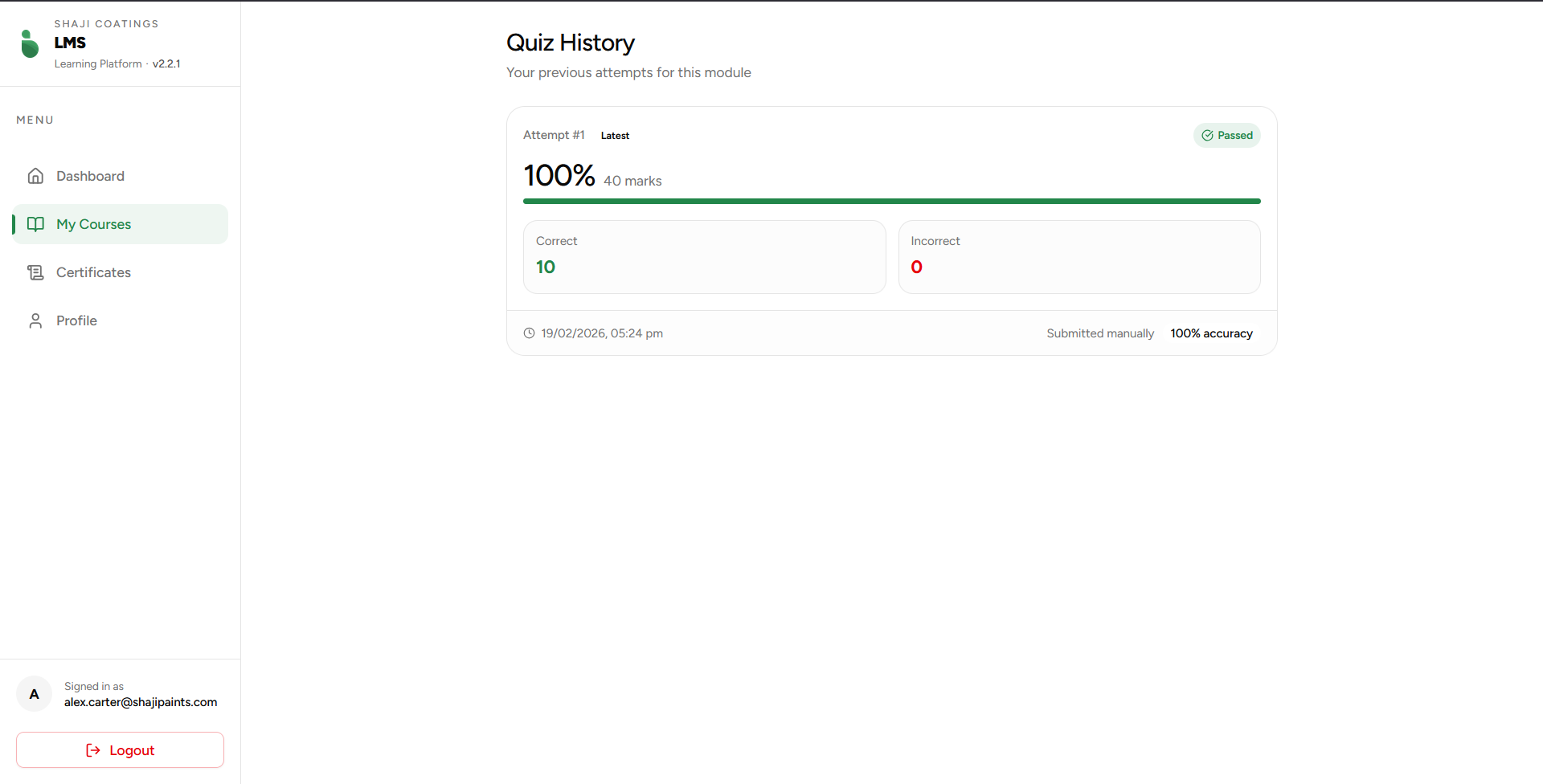 Figure 2: Breakdown of a specific quiz attempt.
When reviewing an attempt card, the system displays:
- Outcome Status: A status badge indicating a
PassedorFailedresult. - Time Metrics: The exact date and timestamp of completion (e.g.,
19/02/2026, 05:24 pm). - Score & Accuracy Card: Displays precise raw scoring breakdowns, showcasing total Correct vs. Incorrect counts along with your final mathematical accuracy percentage.
- Submission Log: Flags how the test concluded (e.g.,
Submitted manuallyvs. automatic system submission).
The Quiz Examination Environment
When clicking an active evaluation button, the system opens a Quiz Preview gateway. This screen acts as a vital landing pad before initializing the timer.
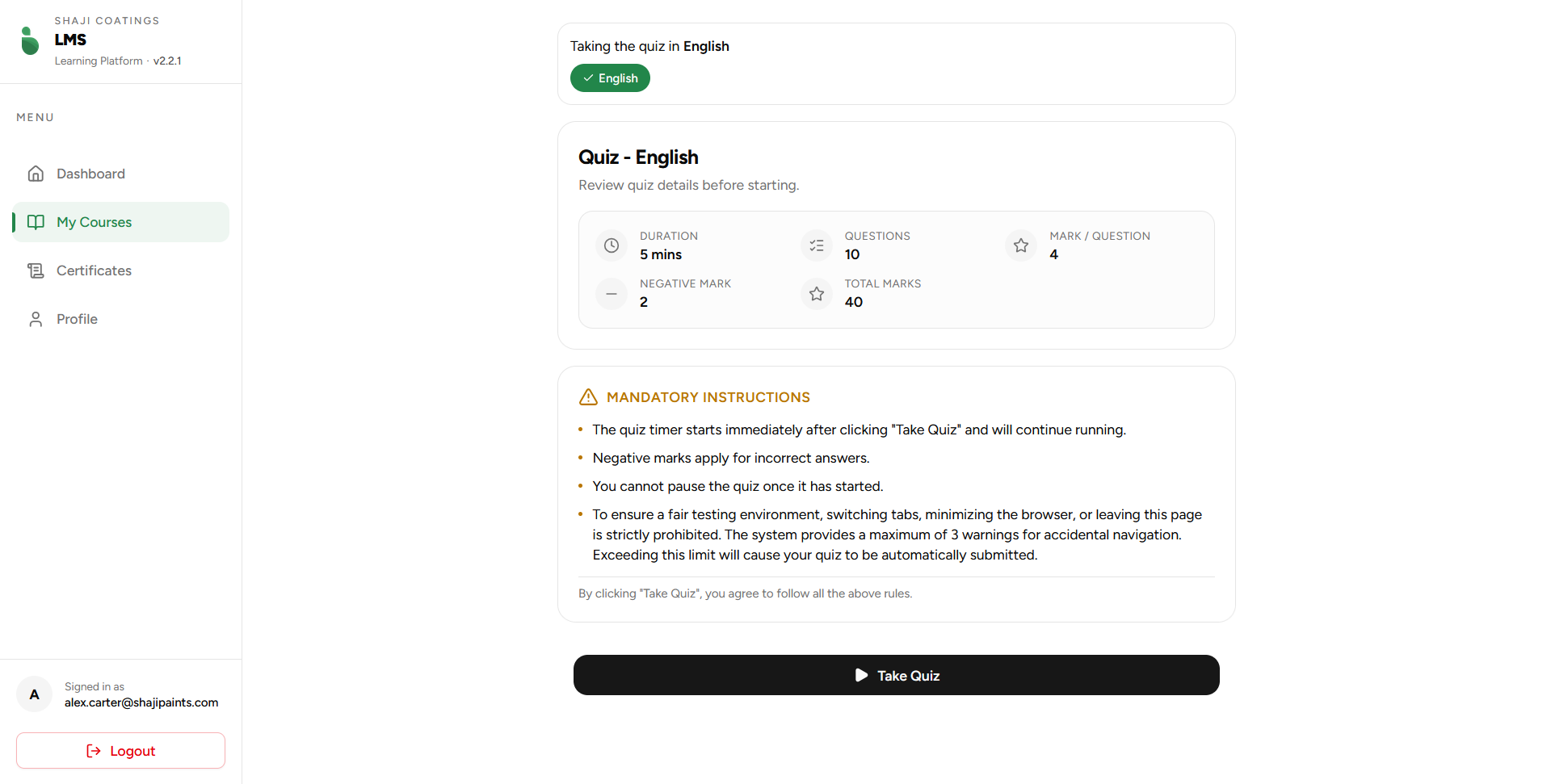 Figure 3: Quiz parameter rules and mandatory instructions landing page.
Performance Parameter Breakdown
Before launching an attempt, the dashboard presents a metrics grid containing the test parameters:
- Duration: The total allotted countdown time (e.g.,
15 mins). - Questions & Marks: Total questions contained within the bank, total achievable marks, and individual weight metrics per question.
- Negative Marking: Highlights if strict down-marking deductions are active for incorrect attempts (e.g.,
-2per wrong answer).
Mandatory Integrity Instructions
The platform enforces absolute academic and corporate integrity during live testing blocks. By launching a quiz, you agree to follow these automated parameters:
- Non-Pauseable Timers: Once you click Take Quiz, the digital countdown cannot be paused or stopped under any circumstances.
- Anti-Cheating / Browser Safeguards: Leaving the testing tab, minimizing your browser, or navigating to alternative windows is strictly prohibited. The system actively monitors page visibility and triggers up to 3 accidental navigation warnings. Exceeding this limit results in an automated, instant test submission of your current progress.
⏳ CRITICAL LOCKDOWN & RE-ATTEMPT RULES
To prevent systematic guesswork and maintain rigorous testing environments:
- The 3-Hour Lockdown: If an employee fails a quiz attempt, the assessment engine locks down. The execution button will display a countdown timer, preventing additional testing submissions until a strict 3-hour cooldown window passes.
- Unprepared/Empty Quizzes: If an administrator has created a quiz module layout but hasn't uploaded structural question blocks yet, the system defaults to a safe state. The message
The quiz is not ready yet. Please check back later.will print, and the Take Quiz button will remain strictly disabled.